
How to Download and Install Capcut on Your Mobile Device and Sign In with the Email and Password
Today’s lesson covers how to download and install CapCut and Sign In with your email and password.
You can learn video editing without complications, especially when you start with the right tools. In today’s lesson, I’ll help you take the first step: download and install CapCut on your mobile device and sign in successfully.
I designed this to prepare you for the next class, where we will start editing videos.
CapCut is a popular beginner-friendly mobile video editing app that helps users create, edit, and enhance videos easily. It is one of the most important mobile applications we can use to edit our videos. It comes packed with features like trimming, adding music, text overlays, filters, transitions, and effects, making it perfect for beginners and even experienced creators.
CapCut is free to use, and you can install it on your mobile phone or computer. Creators widely use it to create content for platforms such as WhatsApp, TikTok, YouTube, and Instagram. You don’t need prior editing experience or professional equipment to use CapCut.
Editing videos with CapCut can be both fun and exciting. The most exciting thing about CapCut is that, beyond personal use, it also enables you to edit videos for others, for pay or for special events. This makes CapCut a great tool for anyone who wants to learn video editing as a skill or profession or earn income through content creation.
In this lecture, you will learn step by step how to download and install CapCut on your mobile device and sign in with an email and password. However, we will not edit videos in this session. Understanding this process is very important because it prepares you fully for the next class on editing videos. You need to know this before you have to talk about editing on CapCut.
Before you download CapCut, it helps to understand what the app is, what it’s used for, and what you need for a smooth installation process. This foundation will help you avoid common mistakes and make the learning process easier as we move forward.
Once you install CapCut on your device, you will be ready to explore its features and start editing in the next lesson.
So let me guide you step by step on how to download and install the CapCut mobile application, then sign in with the email and password. Alternatively, you can use the one I provided or any email and password that you prefer.
YOU CAN ALSO READ
How to Sell Ebooks Online to Any Country of Your Choice
Content Creation and the Types of Content You can Create for Your Page
Step by Step Guide to Create an Ebook with Google Documents
How to Do Simple Editing on Capcut, Add Texts and Audio to Your Video
How to Download and Install CapCut and Sign In
If you are new to CapCut, download and install the app on your mobile device and sign in to your account. This will prepare your device for video editing and give you access to all features in CapCut. This will also help you avoid errors when you start your first project. Therefore, follow the simple steps below to install the app and sign in successfully.
Before you start, make sure that your device is connected to a stable internet connection. You need a strong internet connection to access the Play Store or App Store and download the CapCut application without interruptions.
Step 1: If you don’t have CapCut on your phone, download the official app first. Make sure you download the right application. Then Open CapCut. Go to www.capcut.com
Many people struggle with downloading CapCut. If you are not yet familiar with how to download CapCut, all you have to do is go to the Google Play Store if you are using Android, or go to the App Store (iOS) if you are using an Apple phone. Go to the search bar in the Google Play Store. This is your Play Store below.
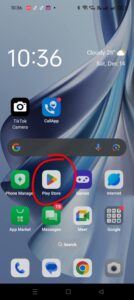
2. When you open the Play Store, scroll down and click Search like the image below

Then type CapCut in the search bar and tap Search.
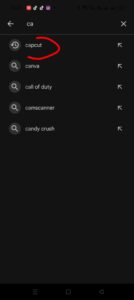
CapCut is like the image below.
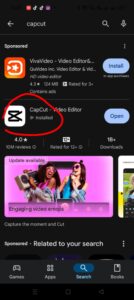
Click Install and download CapCut. The image I posted here is “Open” because I already have CapCut. But if you don’t have the app, yours will say “Install”. Install the mobile application. After installation, go to step two.
2. Open the App: After you have installed it, click on CapCut and open the CapCut app on your phone. It will guide you through a few setup steps; follow the on-screen prompts and choose the options that best suit you. Once the app is open, log in with the email and password I gave you.
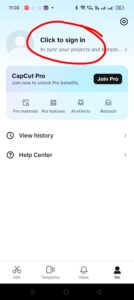
3. To sign in with the email and password, check the top left of CapCut or the bottom right of CapCut; you will see the image of a person. Click on the image. Example below
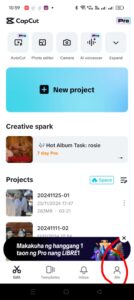
When you click that image, you will see one of these two options. It will either open the sign-in page or go directly to the email sign-in option. So check the two images below.
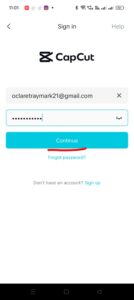
Then input the email and password I gave you and click “Continue” to log in.
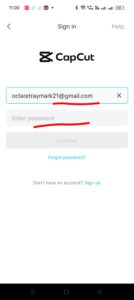
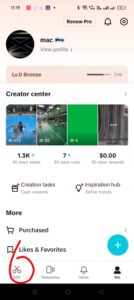
When you log in, look at the bottom left of the app; you will see “Edit’ Click Edit to start editing your video on CapCut. An example is the image below.
In the next lesson, we will learn how to edit on CapCut. Before that, let me show you what to do if CapCut doesn’t give you a space to sign in with Email.
If this happens, please log in to CapCut first using TikTok or Facebook. Browse for about two minutes. Then log out. Then try logging in again with the email and password as indicated above.
Conclusion:
Now that you have downloaded CapCut, installed it on your mobile device, and signed in with your email and password, you are ready for the next stage. This simple setup matters because it prepares your device for editing and unlocks everything you need inside CapCut. Therefore, take time to practice the steps above and get familiar with the app. In the next lesson, you will learn how to start your first project and edit your first video in CapCut. Once you complete this lesson, you will be ready to create clean and engaging videos with confidence.
Assignment:
First, study and practice the above steps. Then, if you have any questions, leave them in the comments section. I’ll be happy to answer them.
Good evening fr! I don’t if I have joined the g group when you gave out the email and password for the CapCut. I am trying to follow the lecture from the beginning. I would like to get the email and passwords if possible. Thank you
Benjamin