
How to Edit Your Videos with Creative Fabrica Studio?
One of the Ai platforms that is more creative than Grok ai is the newly launched Creative Fabrica Studio. Creative Fabrica studio, gives you a powerful video generation so powerful more than grok and heygen.
Creative Fabrica is a very powerful Ai video generator platform that recently is having a lot of popularity. Many people are using this platform recently.
Creative Fabrica is a creative platform that provides AI tools for design, image generation, video generation, music generation, logo creation, and other creative assets.
This AI Video Generator helps you to generate videos from text to speech, image to video or refine already generated video. With this platform, users can describe their video, tag images and audio, and generate unique videos with AI.
How Useful Is Creative Fabrica
Creative fabrica is highly useful once it comes to Ai video genration. I always let people understand that creative fabrica, though it is new, it is one of the best Ai video generation platforms.
With Creative Fabrica, you can create Short AI videos, product videos, Social media reels, Animated visuals, Promotional content, Story scenes, Design-based videos and creative marketing videos.
Creative Fabrica is especially helpful for creators who also need graphics, fonts, images, music, templates, and branding materials.
You can Check the Following:
Watch the Second Lecture on How to Use Flow Ai and Creative Fabrica
Watch the Video of the First Lesson on Using Meta AI
How to Make Money With Facebook Subscription
Filmora: How to download and install Filmora and sign in with email and password
10 Proven Ways to Make Money Through Content Creation
AI Platforms You Can Use Freely to Generate Your Videos
How to Use Flow AI to Create AI Videos and Movies Step by Step
How to Use Creative Fabrica Studio to Create a Video Step by Step
Let us gradually learn how to use this recent platform gradually. Notice that creative fabrica offers you a free account for a while, hence they give you links to refer others to them, when they pay, they will give you 100,000 coins. The more videos you generate, the more you use the coins. I recommend them too, because their video generation is highly professional.
Step 1: Visit Creative Fabrica Studio
Go to studio.creativefabrica.com and open the AI Video Generator section. You will see an image below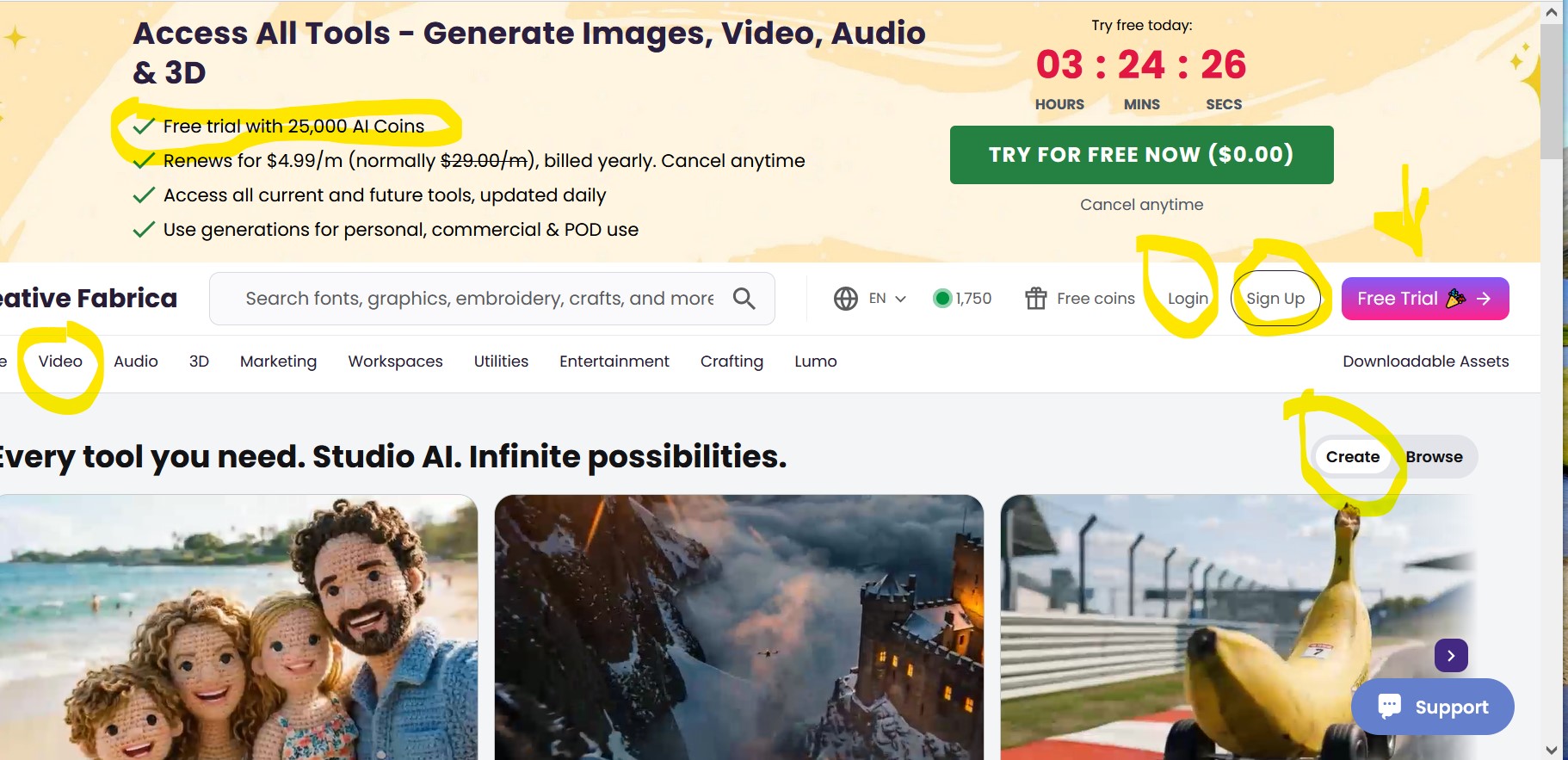
As you can see in the image, they give free trials with 25,000 AI coins. They renew at only 4.99 dollars per month , which is billed yearly. You can also cancel this anytime. You can start with free for $0.00.
When you open this, first you have to sign up. If you have account already, you can click “Log in”
If you click “Sign up” You will see an image like below. Remember to sign up with my link
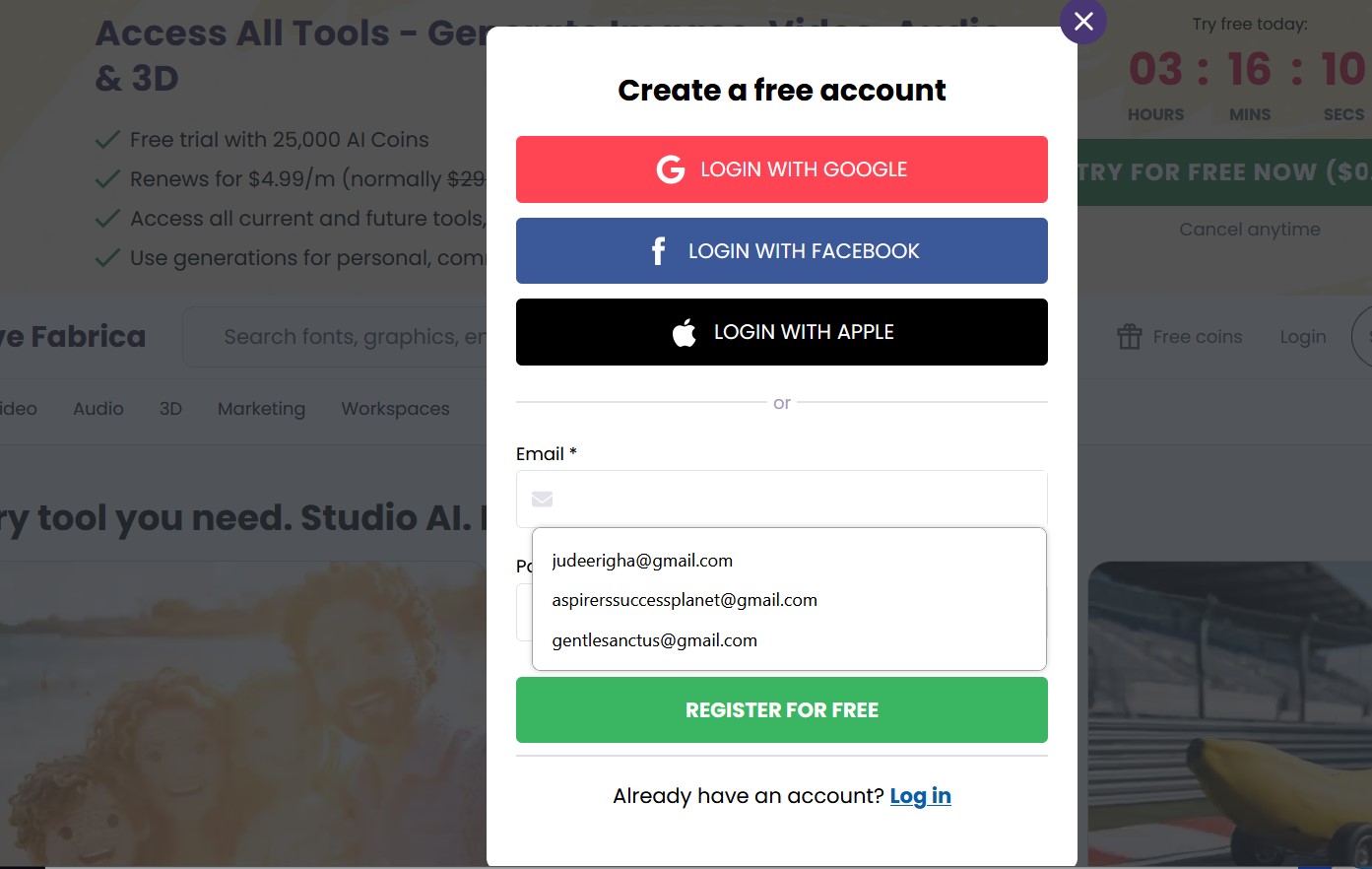
Then put your email.
Step 2: Choose AI Video Generator
Select the video as you see in the image below, and then select Video generator. You can generate music by clicking the audio generator tool. Creative Fabrica’s AI video page allows users to generate videos from text descriptions. So for the video, click video, next click video generation tool.
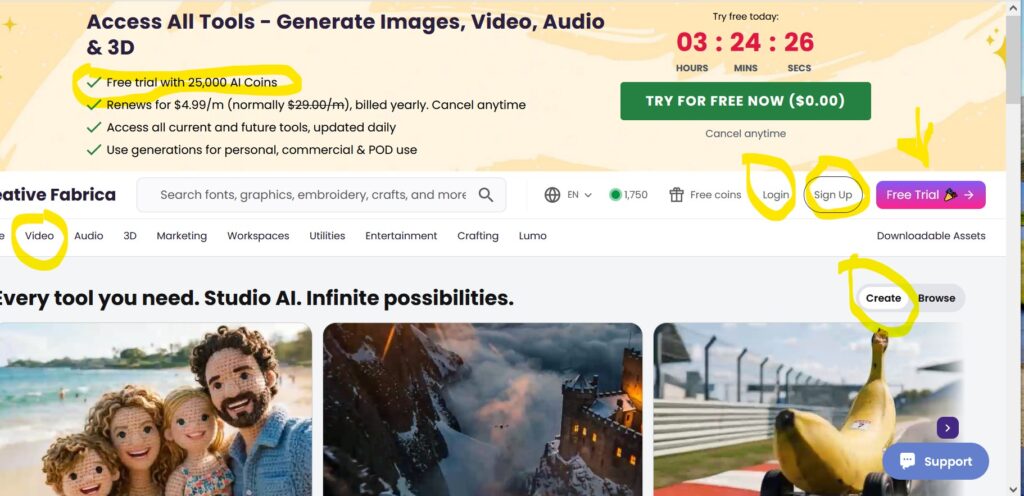
Once you click this, you will see this below, continue to click the video and video generation as shown below
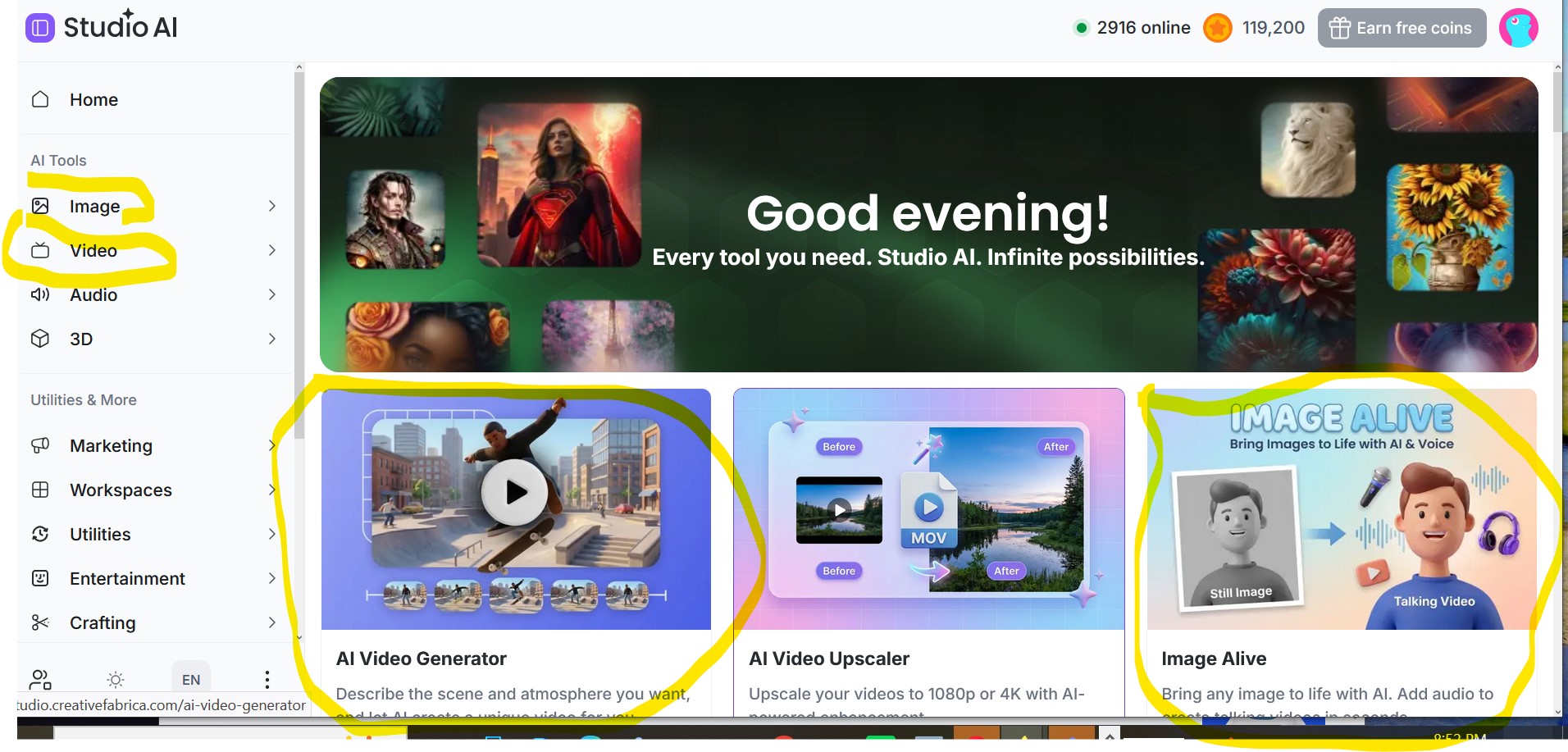
If you want to animate an image, you can use the image alive. You can also upscale your video from 720 to 1080 p.
Step 3: Write Your Video Description
Describe the video you want to create.Make sure you give them a good prompt which should include the Character, then Location, Action, the Emotion, also Camera movement, the Lighting, Style, Video format and the Mood.
For Example, you can generate a beautiful cinematic video of a young woman walking through a flower garden in the morning, soft sunlight, peaceful atmosphere, slow motion, realistic style. Put in the encircled space below. You can as well choose among the templates.
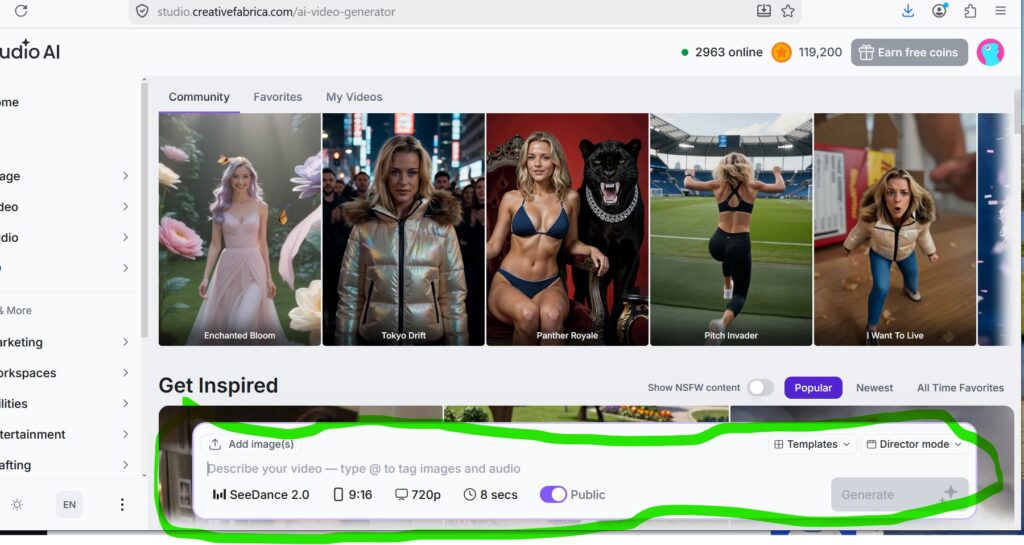
Step 4: Add Images or Audio Where Available
At Creative Fabrica Studio one can upload images and audio within the space, where they write “addimages”You can see where I encircled for the adding of images. it will take you to your device to upload the images.
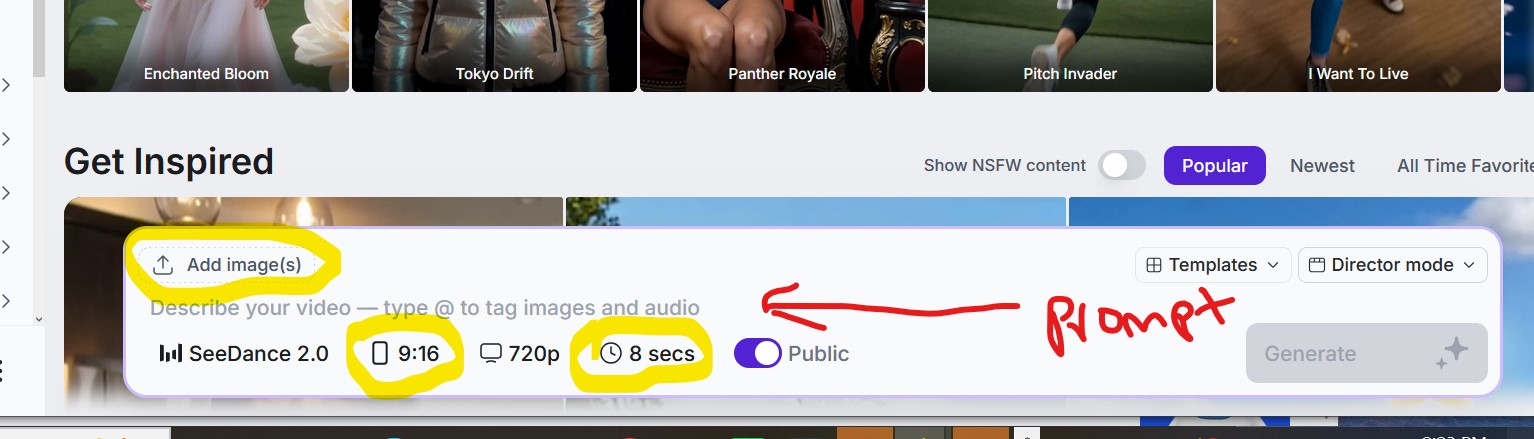
Add Images: This is where you can add images
9:16: This is where you select the aspect ratio. 9;16 is for tiktok, while 16:9 is for youtube, 3;4 or 4:3 is for instagram, or facebook. Sometimes 9:16 is also for facebook.
8 secs: Click there to change the length of the video. either to 10 seconds or 15 seconds
So while typing your prompt, you can type “@” to tag images and audio in the video generator. For example @img1. If the images are more than one, you can tag them one by one.
For example; you can write a prompt like this:
Using the attached image as reference, @img1 is daniel while @img2 is emeka, let emeka smile at daniel and tell him how he wants him to be his friend. Emeka replies that he is not interested in the friendship.
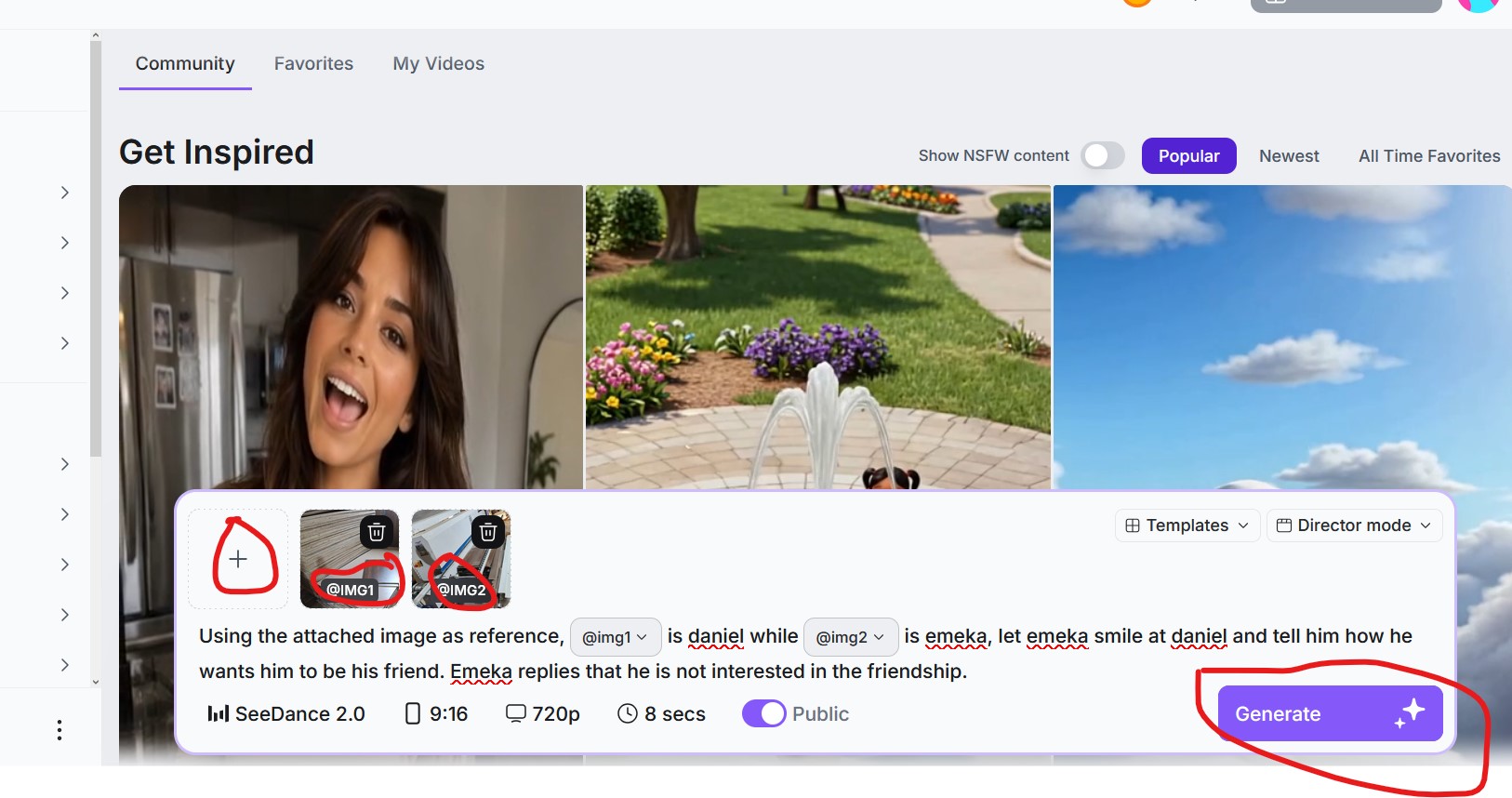
Then hit generate.This is useful when you want to guide the AI with a specific image or sound. You can use this feature to add a character reference, a product image. For example if you uploaded a book as image two, you can tell the prompt that image 1 @img1 is holding image 2. @img2. You can also use this feature to add background audio, add a design asset and characters of a movie scene also, maintain visual consistency.
Step 5: Generate the Video
After entering your prompt and adding any needed media, generate the video. Wait for the platform to process it.
Step 6: Preview the Result
Watch the generated video. Check whether it matches your idea. Check if the characters are consistent, if the movement is good? Is the subject clear?You as well check if the lighting is beautiful. Does it fit the message? Is the video suitable for your brand?
Step 7: Edit or Regenerate
If the result is not what you want, edit your prompt and generate again.
You can do a prompt like this. For example:
“Make the scene more cinematic, add warm golden lighting, make the camera move slowly from left to right, and make the woman smile gently.”
Step 8: Download and Polish
After generating the video, download it if the platform allows. Then you can polish it in a video editor. You can use capcut, or canava or inshort. You can add features like Captions, Music, Voiceover, Logo, Website name, Transitions and a Call to action.
How to Use Flow AI and Creative Fabrica Studio and video Editors Together
You may not want to use only one tool. A professional creator can combine both. The problem here is that it costs a lot of money. Hence you can use Flow AI for cinematic movie scenes. Then use Creative Fabrica Studio for supporting visuals, design scenes, creative assets, and additional videos. After that you can use CapCut, Canva, or InShot for the editing.. You can add voiceover, subtitles, music, and transitions. And Export for YouTube, Facebook, TikTok, Instagram, or your website.
This workflow is powerful because Flow AI can help with cinematic storytelling, while Creative Fabrica Studio can help with design, visuals, and creative video generation.
Next Lecture will be How to Edit with Canva
Awesome!